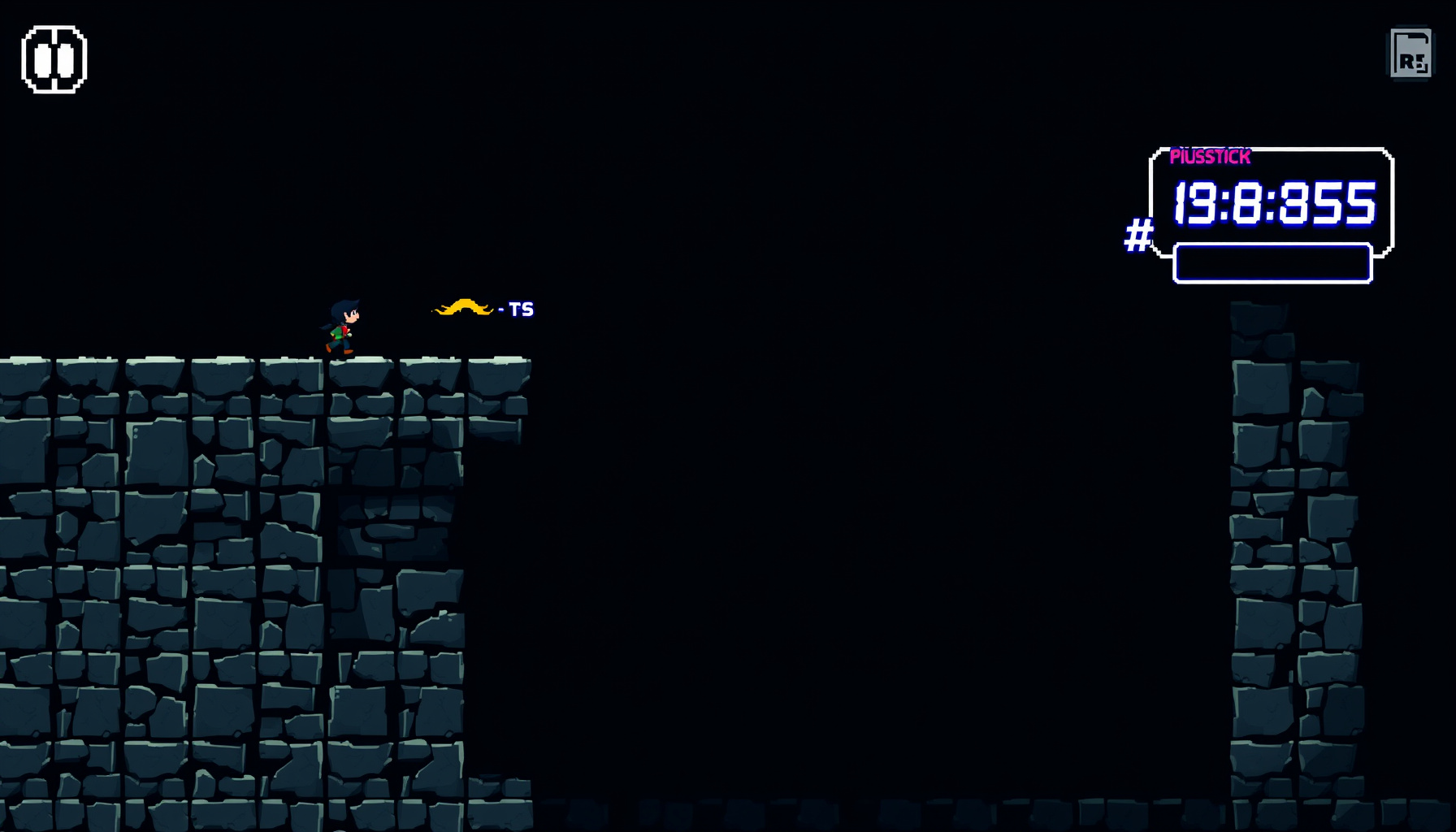
Coyote Time and Input Buffering: Make Your Phaser Jumps Feel Fair
You know that sinking feeling when a player swears the jump button didn’t work, and you know it did? That’s usually a timing problem, not a skill problem. Two small, beginner-friendly timers called coyote time and jump buffering fix most of it. This guide explains what each one does, why it feels fair, and how to add both to a Phaser 3 scene using JustDown and millisecond countdowns.
How this guide was researched: This guide is based on the developer posts cited below (Maddy Thorson’s game-feel thread, as covered by Polygon and GameSpot, plus the GameDesign.gg glossary), the official Phaser keyboard documentation, and the phaser.io “Just Down” example. The code in this guide is a teaching sketch. We did not run this code in a browser for this guide, so treat it as a pattern to adapt and test in your own project.
Why your jumps feel unfair
Picture two common moments. A player runs off a ledge and presses jump a few frames too late, so the press is ignored and the character drops. Or the player presses jump just before landing, and the press is ignored again, so the character sits on the ground for a beat. Coyote time fixes the first case and jump buffering fixes the second.
What is coyote time?
Coyote time is a short window, measured in milliseconds, where the player can still jump after walking off a ledge. The name is a reference to Wile E. Coyote, as GameSpot’s write-up of Maddy Thorson’s thread notes.
Thorson’s thread lists it as: “1- Coyote time. You can still jump for a short time after leaving a ledge.” Polygon describes the effect as an extra moment that lets players finesse their maneuvers. Celeste did not invent the technique. Thorson wrote, in the same thread, that they don’t think they invented any of these. It is an old trick that Celeste uses well.
What is jump buffering?
Jump buffering is the mirror image. It remembers a jump press that arrives while the character is still airborne, then executes it on the first frame the character can jump. GameDesign.gg’s glossary defines it as “remembering a jump input that arrives while the character is still airborne and executing it on the first frame after landing.”
The design promise is simple: a press the player meant to make before landing is not lost. The same glossary entry adds a warning. Buffered actions that interact with landing states, such as knockback stun, moving platforms, or animation-locked landings, need explicit rules, or the mechanic feels buggy. If a player is hit the instant before landing, should the buffered jump still fire on touchdown? Your game has to decide.
The two Phaser tools you need
You only need two pieces of the Phaser keyboard API. Both live under Phaser.Input.Keyboard.
Phaser.Input.Keyboard.JustDown(key)returnstrueonly once per press, until the key is released and pressed again. The docs describe it as designed for use in a core game loop without an event. Use it for “did the player tap jump just now?”Key.isDownremainstruefor as long as the key is held, per theKeyclass docs. Use it for “is the player holding jump right now?”
Your scene’s update(time, delta) method runs every frame. time is the total elapsed milliseconds and delta is the milliseconds since the previous frame. This is standard Phaser scene behaviour; confirm it in the Phaser Scene docs when you build your own scene. Because delta is in milliseconds, a timer that counts down with delta drains at the same wall-clock speed regardless of frame rate.
Code walkthrough: grace timers in update()
The sketch below assumes Arcade Physics, where this.player is an Arcade sprite. Start with setup in create():
// In create(): the jump key and two timers, all in milliseconds
this.spacebar = this.input.keyboard.addKey(Phaser.Input.Keyboard.KeyCodes.SPACE);
this.coyoteTimer = 0;
this.jumpBufferTimer = 0;

// Example values only. Tune them by feel.
this.COYOTE_MS = 100;
this.JUMP_BUFFER_MS = 120;
Then the per-frame logic in update():
// In update(time, delta)
update(time, delta) {
  const onGround = this.player.body.blocked.down;

  // Call JustDown once per frame and store the result
  const jumpPressed = Phaser.Input.Keyboard.JustDown(this.spacebar);

  // (a) Remember a press for JUMP_BUFFER_MS
  if (jumpPressed) {
    this.jumpBufferTimer = this.JUMP_BUFFER_MS;
  }

  // (b) Count both timers down using delta (milliseconds)
  this.coyoteTimer = Math.max(0, this.coyoteTimer - delta);
  this.jumpBufferTimer = Math.max(0, this.jumpBufferTimer - delta);

  // (c) Refresh coyote grace while the player is on the ground
  if (onGround) {
    this.coyoteTimer = this.COYOTE_MS;
  }

  // (d) Jump if there is grace AND a buffered press, then spend both windows
  if (this.coyoteTimer > 0 && this.jumpBufferTimer > 0) {
    this.player.setVelocityY(-500); // example jump speed; your jump logic goes here
    this.coyoteTimer = 0;
    this.jumpBufferTimer = 0;
  }
}
A few notes on what this does:
deltais milliseconds. That’s why both timers are inms. If a forum post gives a window in frames, you can convert it withframes * 1000 / targetFps, but working inmsfrom the start keeps tuning simple.- Coyote refreshes on the ground and drains in the air. While grounded, the timer stays at
COYOTE_MS. The moment the player walks off a ledge, it starts draining, so they still have grace left. - The buffer is set, then drains. When
JustDownfires, the buffer timer is set toJUMP_BUFFER_MS. Each frame after that it drains. If the player lands while the buffer is still positive, the jump fires on that landing frame. - Spending both windows prevents double jumps. Once the jump fires, both timers go to zero, so the same press cannot trigger a second jump on the next frame.
- Polling is the idiom. The phaser.io “Just Down” example uses the same pattern: add a key, then check
JustDowninsideupdate().
Tuning your timers (and why we won’t give you a magic number)
Beginners always ask what to set COYOTE_MS and JUMP_BUFFER_MS to. None of the sources used for this guide publishes a canonical window. The only figure we found is the GameDesign.gg glossary’s note that buffer windows “around 3 to 8 frames are common.” That is a glossary statement about common practice, not a measurement, and it covers buffers only. It says nothing about coyote time.
A workflow that works for beginners:
- Pick a starting value, such as 100 ms, for both.
- Build a tiny test level with a flat ledge, a pit, and a platform to land on.
- Crank both windows up (for example, 300 ms) until every forgiving input succeeds. Then dial them down until misses feel fair but real.
- Have a friend playtest. If they jump off a ledge and fail while visibly late, the coyote window is too small. If they float off every ledge, it’s too big.
What you learned
- Coyote time is a short grace window after a character leaves a ledge, during which they can still jump. The name is a reference to Wile E. Coyote, as GameSpot notes.
- Jump buffering remembers a jump press made while airborne and fires it on the first frame conditions allow, per the GameDesign.gg glossary.
- Celeste did not invent these techniques. Thorson said so in the Medium post.
- In Phaser,
JustDown(key)detects a fresh press, andkey.isDowndetects a held key. - Counting timers with
deltakeeps grace windows tied to wall-clock time, which makes tuning simpler. - There is no canonical millisecond value. Tune by feel, and treat any “common range” you read as a starting point.
FAQ
How long should my coyote time and buffer windows be?
Tune them by feel. None of the sources used for this guide publishes a canonical number. A practical starting point is the GameDesign.gg glossary’s note that buffer windows “around 3 to 8 frames are common.” That is a glossary statement about common practice, not a measurement. Set a starter value, playtest, and adjust.
What happens if a buffered jump interacts with landing states like stun or moving platforms?
According to GameDesign.gg’s glossary, buffered actions that interact with landing states need explicit rules, or the mechanic causes bugs. Decide whether a buffered jump still fires when the player is staggered, lands on a moving platform, or is locked into a landing animation.
Can I use DownDuration instead of JustDown?
Possibly. Phaser.Input.Keyboard.DownDuration(key, [duration]) returns true if the key was pressed within duration ms of the current game clock time, with a default of 50 ms. Use it when you want a press-within-a-window check. Test how it behaves in your project before you rely on it, because this guide did not run it in a browser.