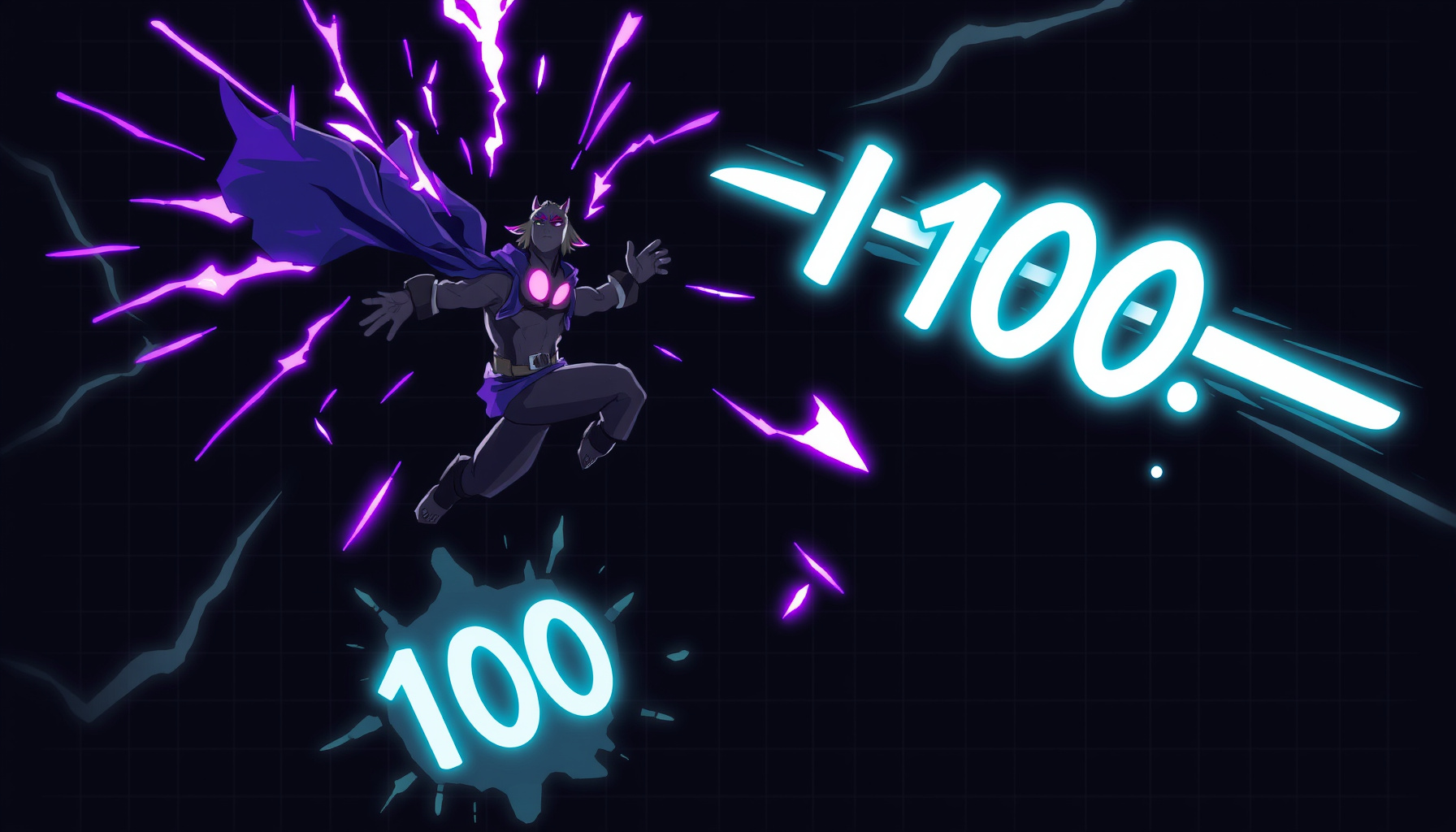
Beginner's Guide to Game Juice: Make Games Feel Great
The same jump feels dead in one game and exhilarating in another — the difference is juice. If you’ve ever wondered how to add game juice as a beginner, the answer is simpler than you think: game juice is one of the highest-impact improvements you can make to a browser game, and Phaser 3 gives you built-in tools for it. With AI assistants like Claude, ChatGPT, or Cursor, you can generate polished juice code from plain-English prompts in minutes, no deep animation expertise required. The core ideas come from Martin Jonasson and Petri Purho’s classic GDC talk “Juice It or Lose It”, which defined the term.
How This Guide Was Built
This guide is based on the Phaser 3 API documentation, the GDC talk “Juice It or Lose It”, and the Game Developer article “The Art of Screenshake”. We verified Phaser API method names and the free tiers of the listed AI tools, but we did not run hands-on playtesting or measure frame-rate impact of juice effects. Last verified: August 2026.
What Is Game Juice?
Game juice is the collection of small visual and audio feedback effects that make a game feel responsive and alive — a term popularized by Martin Jonasson and Petri Purho’s GDC talk “Juice It or Lose It”. Jan Willem Nijman expands on the idea in Game Developer — “The Art of Screenshake”, showing even tiny effects create huge impact.
How Do You Add Game Juice as a Beginner?
You add game juice as a beginner using Phaser 3’s built-in animation and effects APIs — no plugins or external libraries required. Each technique below is a single method call or a short tween configuration. For setup basics see the Phaser 3 framework guide, and for keeping effects smooth read the Phaser performance guide.
Screen Shake
Screen shake is the fastest way to add impact to any hit or explosion. Call this.cameras.main.shake(duration, intensity) on your main camera, and Phaser handles the rest. According to Vlambeer’s philosophy in Game Developer — “The Art of Screenshake”, even a shake of 2–4 pixels registers as a solid impact to players. Start with a 100–200 ms duration and adjust from there. See the Phaser 3 Camera docs for the full method signature.
Squash and Stretch
Squash and stretch gives objects a sense of weight and elasticity. Use this.tweens.add({ targets: sprite, scaleX: 1.2, scaleY: 0.8, duration: 80, yoyo: true }) to squash a ball on bounce, a character on landing, or a button on press. The tween automatically returns to the original scale with the yoyo flag. This technique is documented in the Phaser 3 TweenManager docs. Combine a quick squash with a slower stretch for a more organic feel.
Hit-Stop (Freeze Frames)
Hit-stop pauses the game for a few milliseconds to make a hit feel heavier. Pause the physics world with this.physics.pause();, then resume after a beat using this.time.delayedCall() — see the Phaser 3 physics docs for the pause and resume methods. A pause of 50–100 ms reads as weight without feeling laggy. This technique was popularized in fighting games and is discussed in the GDC Vault — “Juice It or Lose It” talk as one of the most effective ways to sell impact. Apply it on enemy hits, player deaths, or big collectibles.
Particles
Particles create instant visual feedback for collections, deaths, and movement. Call this.add.particles(x, y, texture, config) to create an emitter, as shown in the Phaser 3 ParticleEmitter docs. Start with 10–20 particles per burst and a lifespan of 300–500 ms. Use them for coin collect sparks, enemy death explosions, or a subtle trail behind the player. Keep the config simple: set speed, lifespan, and scale to get a good-looking effect.
Floating Text (Damage Numbers)
Floating text makes numbers and feedback readable and satisfying. Create a text object with this.add.text(), then tween it upward while fading out. Use the Phaser 3 TweenManager docs to animate y by -30 and alpha to 0 over 400 ms, then destroy the object on complete. This pattern works for damage numbers, score pop-ups, and “miss” indicators.
Tween Easing
Easing functions control how an object accelerates or decelerates during a tween. Set the ease property in any tween config — for example, ease: 'Bounce.easeOut' for a bouncy landing, 'Back.easeOut' for a slight overshoot, or 'Elastic.easeOut' for a springy pop. These are all built into the Phaser 3 TweenManager docs. Use them for menu transitions, item pop-ins, and health bar changes to make everything feel less robotic.
AI Prompts for Game Juice Code
AI tools shine at generating boilerplate juice code from a clear prompt. Copy these templates into Claude, ChatGPT, or Cursor, and adjust the names to match your game. For more prompt-writing tips, see the prompt engineering for Phaser guide. You can also explore the AI bot tools hub for more assistant options.
Screen shake on player hit: “You are a Phaser 3 expert. Write a shakeOnHit method that shakes the main camera for 150 ms at intensity 0.01 when the player takes damage. Use the Camera shake API. Include a comment explaining the intensity value.”
Squash and stretch on jump: “You are a Phaser 3 expert. Write a squashOnJump method that tweens the player sprite to scaleX 1.2 and scaleY 0.8 on jump start, then back to 1 x 1 on landing. Use the TweenManager API with yoyo: true and ease: 'Quad.easeOut'.”
Particle burst on coin collect: “You are a Phaser 3 expert. Write a coinBurst method that creates a particle emitter at the coin’s position, emitting 15 particles over 400 ms lifespan with speed 200, then destroys the emitter. Use the ParticleEmitter API. Add a golden color tint.”
Common Juice Mistakes Beginners Make
Common beginner juice mistakes include stacking every effect at once, skipping easing functions (linear tweens look robotic), leaving temporary objects alive until they leak memory, adding juice without a gameplay trigger, and ignoring low-end devices — the Phaser 3 TweenManager docs show the easing options. Start with one effect per action; see the Phaser performance guide for cleanup patterns.
FAQ
Game juice is quick to add, safe on performance if you follow a few rules, and closely related to game feel. The techniques below answer the most common beginner questions about implementing juice in Phaser 3. Each answer names the exact Phaser API involved, so you can act on it immediately.
Is game juice hard to add if I can’t code?
No. Phaser’s TweenManager and ParticleEmitter are single-method calls, so you can paste a plain-English description into Claude or ChatGPT and get working code. You don’t need to understand every parameter to see immediate results.
Does game juice slow down my browser game?
Yes, it can if overdone. Keep particle counts under 30 per burst, limit screen shake to 200 ms bursts, and destroy temporary objects after they finish. For more optimization tips, see the Phaser performance guide.
What’s the difference between game juice and game feel?
Game feel is the broader sensation of controlling a game — responsiveness, physics, and feedback combined. Game juice is the cosmetic polish layer: particles, screen shake, tweens, and sound that amplify that sensation. They overlap heavily, but juice is the garnish on top of good game feel.
Next Steps
You now have a toolkit of juice techniques to try. Browse the browser games on AIGamingDev hub to see these effects in existing projects, then join the community leaderboard to share your results. Pick ONE technique from this guide and add it to a current project this week — start with screen shake, it’s the easiest win.